Learn how to change the formatting settings on a standard Bar Chart. The default settings of the Pivot Chart add a lot of unnecessary chart element that distracts the reader from the overall story that the chart is trying to tell. This video explains how to remove these elements and prepare the chart for a presentation or dashboard.
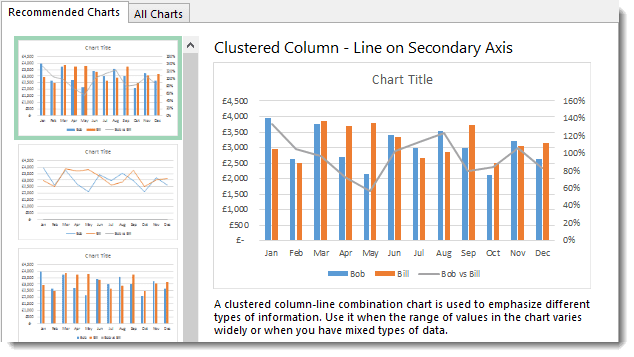
Chester explores the new features for creating great looking charts in Excel 2013. Recommended Charts suggests the best chart type for your data. This video explores how to create pie charts, combo charts with a secondary axis, scatter graphs and pivot charts all using the Recommended Charts option.
The tutorial includes a video, a step by step written guide as well as an Excel file that you can use to practice your new found knowledge and skills.
A Pareto chart contains columns sorted in descending order together with a line displaying the cumulative total. The Pareto principle states...
A Pareto chart contains columns sorted in descending order together with a line displaying the cumulative total. The Pareto principle states that 80% of effects come 20% of causes. This chart type is new in Excel 2016.
How to Create Pareto Chart in Microsoft Office Excel
During the Define step of a Six Sigma project, the project team needs to identify the problem or the opportunity that the project is intended to solve. Usually, there would be more than one potential problem that can be addressed in a Six Sigma project; however, not all of them would have significant improvement.
So, the project team needs to filter out those problems that if resolved will result in huge improvement and positive impact on the bottom line, and this is what Pareto analysis is used for.
Watch this video to know more about using Microsoft Office Excel to create a Pareto chart in a Six Sigma project.
Microsoft Project is a project management software product, developed and sold by Microsoft. It is designed to assist a project manager in ...
Microsoft Project is a project management software product, developed and sold by Microsoft. It is designed to assist a project manager in developing a plan, assigning resources to tasks, tracking progress, managing the budget, and analyzing workloads. Microsoft Project was the company's third Microsoft Windows-based application, and within a couple of years of its introduction it became the dominant PC-based project management software. It is part of the Microsoft Office family but has never been included in any of the Office suites. It is available currently in two editions, Standard and Professional. Microsoft Project's proprietary file format is .mpp. Microsoft Project and Microsoft Project Server are the cornerstones of the Microsoft Office enterprise project management (EPM) product.
The following formatting tips increase the ease of readability of the project schedule. The project schedule name should be written in a way...
The following formatting tips increase the ease of readability of the project schedule.
The project schedule name should be written in a way that clearly links the project schedule to the project
Milestones and deliverables should be easily identifiable, formatting in a different color such as green helps distinguish them from other schedule activities
Bolding summary level tasks in addition to other creative uses of bolding, italics, and possibly multiple fonts may also help increase the readability of lengthy project schedules
There are over 400 data fields in MS Project, 296 assignment fields, and 122 resource fields. It would be very time consuming to verify all of the information in each of these fields each time one of the following things happened. Avoiding these things will help to better manage the schedule using Microsoft Project.
Do not copy and paste tasks or resources. Doing this also copies all fields associated with the copied task or resource. It’s extremely difficult to verify each of the many hundreds of fields associated with this each time you copy and paste.
Do not type resource names anywhere in the schedule except on the resource sheet. Doing this will automatically add a new resource into the resource sheet. Microsoft Project will automatically add information such as rate and maximum availability. Not doing this manually within the resource sheet will impact how that resource influences the overall project schedule.
Do not overwrite or change resource names after the schedule has been approved or baselined, or any information has been entered into the schedule such as actual hours, comments, pay rates, etc. Doing this will also overwrite the names throughout the project. On negative impact of this is that all work performed by the previous resource is will show as worked by the new resource name.
Do not overwrite or change task names after the schedule has been approved, baselined, or any information has been entered into the schedule such as actual hours, comments, pay rates, etc. Doing this will also overwrite the names throughout the project. On negative impact of this is that all work performed on that previous task will show as worked on the new task name.
Do not enter or edit % complete. The project will calculate this automatically based on the work remaining
Do not enter fixed dates for tasks unless absolutely required (almost never). The project will dynamically calculate the task start and end dates based on duration, work, units, and task dependencies. Project dynamically calculates dates and schedules based on duration, units, and work. Allowing the application to do this provides a realistic picture of where the project is. Entering fixed dates for tasks eliminates this benefit thus reducing the benefits provided by using a schedule management tool such as Microsoft Project.
Do not manually edit dates calculated by MS Project. Project calculates dates dynamically using a formula of duration x units = work. Based on the result of this formula and any task dependencies outlined within the schedule, Project dynamically calculates and recalculates task start and finish dates. Manually editing these dates distorts the project schedule and will have effects in other areas in the schedule modifying task duration, units, and/or work
Do not create a separate project summary level task. Instead, use the built-in “Show project summary task” option built into the application
Do not rebaseline, update, or change the baseline properties of the project after it has been initially baselined without formal approval to do so. Even after being authorized to rebaseline, keep a copy of the originally baselined schedule as part of the project’s archive and rebaseline using a new copy of the project schedule
Basic Setup of New Microsoft Project Schedule
Before entering any tasks or resources into a Microsoft project schedule, ensuring that the following basic schedule setup options have been considered. Doing this may help make managing the schedule easier as the project moves forward and the information is entered into the project schedule.
1. Enter the properties window by clicking “File” -> “Properties” from the application’s file menu, select the “Summary” tab and enter the appropriate information as described below:
Title – The project schedule title should be written in a way that clearly identifies the project. In most instances, this should be identical to the project file name
Subject – Personalize this setting as appropriate for the project
Author – Identify the individual that was most responsible for the creation of the project schedule
Manager – Identify the individual responsible for managing the project and project schedule
Company – Identify the company that the project manager works for
Category – Personalize this setting as appropriate for the project
Keywords – Personalize this setting as appropriate for the project
Description – A short, but detailed, description of the schedule, clear enough so that anyone not on the project team can identify the schedules purpose without needing to contact the project manager. Include the client, product(s), product(s) version, purpose/goal of the project, etc
Hyperlink Base – If the project schedule uses a path based on a relative link, entering that link here allows the schedule to be moved without breaking the link
2. Enter the options window by clicking “Tools” -> “Options” from the application’s file menu, select the “Schedule” tab, and enable the checkboxes for these items:
Show scheduling messages
New tasks are effort driven
Auto-link inserted or moved tasks
Split in-progress tasks
Show that tasks have estimated durations
Disable the checkboxes for these items:
Tasks will always honor their constraint dates
New tasks have estimated durations
Drop Down Menu Selections
New Tasks: Start on Current Date
Duration is entered in: Days
Work is entered in Hours
Default task type: Fixed Units
3. Enter the options window by clicking “Tools” -> “Options” from the application’s file menu, select the “Calendar” tab, and enter the appropriate information as described below:
The week starts on Sunday
The fiscal year starts in October
Default start time: 8AM
Default end time: 5PM
Hours per day: 8
Hour per week: 40
Days per month: 20
4. Enter the options window by clicking “Tools” -> “Options” from the application’s file menu, select the “Edit” tab, and enter the appropriate information as described below:
Personalize these settings as appropriate for the project
5. Enter the options window by clicking “Tools” -> “Options” from the application’s file menu, select the “General” tab, and enter the appropriate information as described below:
Personalize these settings as appropriate for the project
6. Enter the options window by clicking “Tools” -> “Options” from the application’s file menu, select the “View” tab, and enter the appropriate information as described below:
Enable the Project Summary checkbox
Personalize these settings as appropriate for the project
7. Enter the options window by clicking “Tools” -> “Options” from the application’s file menu, select the “Calculation” tab, and enable the checkboxes for these items:
Automatic
Disable the checkboxes for these items:
Update task status updates resource status
Edits to total task % complete will be spread to the status date
Inserted projects are calculated like summary tasks
Actual costs are always calculated by Microsoft Project
Calculate multiple critical paths
Creating a New Microsoft Project Schedule
At a high-level, the following activities are required to complete the creation of a Microsoft Project schedule.
Divide project work in to project phases. The actual phases used will depend on the type of project, work, lifecycle, and methodology used to complete the project
Enter project tasks into the project schedule and appropriate phases
Enter estimated task work/duration. Accurate estimation is a critical factor to project success. Review the Estimating Practices Guide
Set task dependencies
Estimate resource needs and enter resources into the project schedule’s resource sheet. When doing this also include any pertinent information such as availability calendars, cost, rate, etc
Assign resources to tasks
Review the schedule with project stakeholders and make any necessary updates
Obtain approval for the schedule and baseline
Understanding the Microsoft Project Formula (D x U = W)
Project calculates dates dynamically using a formula of duration x units = work. Based on the result of this formula and any task dependencies outlined within the schedule, Project dynamically calculates and recalculates task start and finish dates. Making changes to these variables will distort the project schedule and will have effects in other areas within the schedule modifying task duration, units, and/or work.
Duration is how many business days you have to complete the work
Units is how many resource units you have to complete the work
Work is how much effort it will take to complete the scheduled work
The Project Manager only needs to supply two of the three formula variables and Project will automatically calculate the third. The first variable entered is often a given for most projects. It is often the estimate for the work. Depending on how the estimate was performed the end result will populate one of the three variables, often the work. The second variable is entered by the Project Manager and is often the resource units. For example, a six-day work week or assigning more than one resource to a task. Microsoft Project uses these two variables to then calculate the task duration.
Entering Actual Work
Entering actual work into a Microsoft project schedule is important because this is one factor that drives the dynamic recalculation of schedule dates and progress. Often a centralized tool such as Project Server is used to make this process more efficient. However, in the absence of a more formalized method for entering actual work, the project manager can enter actual work manually:
From the file menu select “View” -> “Task Usage”
Right click on the right side of the split screen and check only “Actual Work”. Uncheck all other options to avoid confusion. However, you may want to select some of these later to learn additional information about how the project is progressing
Adjust the time scale to reflect days. To do this, right-click the date header on the right side of the split screen and select “Time Scale”. Change Major Scale to Weeks and Minor Scale to Days
Locate the task to enter actual work data for. Expanding the Task will expose all resources assigned to that task
Enter actual work by day for each individual resource working on the task
Resource Leveling and Identifying Over/Under Allocation
Resource leveling is a way to fix over/under allocation. In Project, resource allocations are fixed in one of two ways, by either delaying tasks or by splitting tasks. Leveling resources can also be done in two ways, manually or automatically by the application. Manually leveling resources is the safest way to resolve this type of scheduling issue.
From the file menu select “View” -> “Resource Graph”. This will display a graphical view that effectively shows allocation by the resource. Blue bars represent work at or below a resources standard workday. Red bars represent work over a resources standard workday. No bar indicates that no work is scheduled. Full utilization is represented by a bold black line
Change the “Resource Graph” time scale to weeks for a better view initially. Right-clicking on the date header, select “Time Scale” and change Major Scale to Months, and Minor Scale to Weeks
Viewing the “Resource Graph” initially in weeks will provide an extended view of utilization for the project by resource, by week a. Scroll right to view additional utilization information for the duration of the project b. Click the down arrow key to view additional resources
Review each resource’s utilization for the life of the project
Once a resource has been identified as either over or under allocated changes need to be made to adjust for this. This is done in the Resource Usage view. From the file menu select “View” -> “Resource Usage”
Right click on the right side of the split screen and check only “Work”. Uncheck all other options to avoid confusion
Adjust the visible date range to show the current reporting period by days. Right-clicking on the date header, select “Time Scale” and change Major Scale to Weeks and Minor Scale to Days
Identify over / under allocation at the right of the page. Overallocated resources and over-allocated workdays are highlighted in red. Scroll to the right taking note of over / under-allocated days. When an over / under-allocated resource day has been found, expand the resource exposing the tasks that they are assigned to. Adjust the level of work, units, or duration for individual tasks to smooth over / under allocation for the duration of the project. NOTE: All tasks assigned for the life of the project will be listed. Look for assigned work in the period in question to identify those tasks that need adjustment
Automatic Resource Leveling gives control of how resource allocation is resolved to the application. The project then calculates the best way to resolve allocation as a whole for the project.
Using the Automatic Resource Leveling function is most often not the best approach to leveling resources allocation. The results are very unpredictable and often require manual leveling to correct calculated allocations. If selecting to automatically level resources make a backup copy of the project schedule prior to applying this change. This strategy will allow for the luxury of reverting back to a previous copy, if needed, and possibly avoiding errors that may take extensive time to repair. To apply automatic leveling to the project:
Save a backup copy of the project file prior to auto leveling
From the file menu select “Tools” -> “Level Resources”
Select the “Automatic” leveling calculation radio button
Adjust any additional options/setting before clicking “OK”
Schedule Recovery Options On occasion, due to a number of different circumstances such as poor planning, unavailability of resources, too tight of a deadline, etc., it is necessary to replan a project. When replanning, the practices covered earlier still apply. Bringing the replanned schedule completion date as close to the original as possible can be accomplished by:
Adjusting task dependencies so that work is being conducted on multiple tasks simultaneously.
Adding additional resources
Increasing the % units or availability to work for project resources
Negotiating a new project finish date based on progress to date
Microsoft Project is a project management software product, developed and sold by Microsoft. It is designed to assist a project manager in developing a plan, assigning resources to tasks, tracking progress, managing the budget, and analyzing workloads. Microsoft Project was the company's third Microsoft Windows-based application, and within a couple of years of its introduction it became the dominant PC-based project management software. It is part of the Microsoft Office family but has never been included in any of the Office suites. It is available currently in two editions, Standard and Professional. Microsoft Project's proprietary file format is .mpp. Microsoft Project and Microsoft Project Server are the cornerstones of the Microsoft Office enterprise project management (EPM) product.
Have you ever wondered how to see tasks that are scheduled to take place next week across multiple projects? Would you like to know how to group task data using specific resource fields? What is the most effective way to plan projects with drop dead deadlines? During this session, these questions and others will be answered. The session is designed to show you suggestions that you can apply to your schedules to enhance MS Project 2013/2016/Project On-line immediate usage.
What Will I Learn? 1-Learn About Microsoft Project Visual Designer 2-Create Excel Report Templates 3-Be Able To Export OLAP Cubes and Acc...
You will learn to leverage the power of Excel pivot tables and Visio pivot diagrams. He introduces Project's built-in visual report templates and walks you through creating a task burnup report, a work breakdown structure (WBS), and a resource analysis report.
Microsoft Project is a project management software product, developed and sold by Microsoft. It is designed to assist a project manager in developing a plan, assigning resources to tasks, tracking progress, managing the budget, and analyzing workloads. Microsoft Project was the company's third Microsoft Windows-based application, and within a couple of years of its introduction it became the dominant PC-based project management software. It is part of the Microsoft Office family but has never been included in any of the Office suites. It is available currently in two editions, Standard and Professional. Microsoft Project's proprietary file format is .mpp. Microsoft Project and Microsoft Project Server are the cornerstones of the Microsoft Office enterprise project management (EPM) product.
Microsoft Project is a project management software product, developed and sold by Microsoft. It is designed to assist a project manager in developing a plan, assigning resources to tasks, tracking progress, managing the budget, and analyzing workloads. Microsoft Project was the company's third Microsoft Windows-based application, and within a couple of years of its introduction it became the dominant PC-based project management software. It is part of the Microsoft Office family but has never been included in any of the Office suites. It is available currently in two editions, Standard and Professional. Microsoft Project's proprietary file format is .mpp. Microsoft Project and Microsoft Project Server are the cornerstones of the Microsoft Office enterprise project management (EPM) product.
Microsoft Project 2016 Training Tutorial for Beginners Microsoft Project is a project management software product, developed and sold by Mi...
Microsoft Project 2016 Training Tutorial for Beginners
Microsoft Project is a project management software product, developed and sold by Microsoft. It is designed to assist a project manager in developing a plan, assigning resources to tasks, tracking progress, managing the budget, and analyzing workloads. Microsoft Project was the company's third Microsoft Windows-based application, and within a couple of years of its introduction it became the dominant PC-based project management software. It is part of the Microsoft Office family but has never been included in any of the Office suites. It is available currently in two editions, Standard and Professional. Microsoft Project's proprietary file format is .mpp. Microsoft Project and Microsoft Project Server are the cornerstones of the Microsoft Office enterprise project management (EPM) product.
This short tutorial will help you get started with Project 2016. We'll cover the following topics: 1-Creating a new project Entering tasks and durations Creating a recurring task.
MS Project 2010: Advanced Task management Microsoft Project is a project management software product, developed and sold by Microsoft. It i...
Microsoft Project is a project management software product, developed and sold by Microsoft. It is designed to assist a project manager in developing a plan, assigning resources to tasks, tracking progress, managing the budget, and analyzing workloads. Microsoft Project was the company's third Microsoft Windows-based application, and within a couple of years of its introduction it became the dominant PC-based project management software. It is part of the Microsoft Office family but has never been included in any of the Office suites. It is available currently in two editions, Standard and Professional. Microsoft Project's proprietary file format is .mpp. Microsoft Project and Microsoft Project Server are the cornerstones of the Microsoft Office enterprise project management (EPM) product.
Linking Tasks Automatically, Entering Lag times, Changing Task Relationships and other advanced task related topics. Video from Project Management Fundamentals, a new type of textbook designed to be: granular, easy to use with a "flipped" classroom approach, and designed for electronic distribution on iPads, kindle readers, and PCs/Mac. Find out more http://pmf.education/
Project Webcast: Tips and Tricks for More Accurate Scheduling in Microsoft Project Microsoft Project is a project management software produ...
Project Webcast: Tips and Tricks for More Accurate Scheduling in Microsoft Project
Microsoft Project is a project management software product, developed and sold by Microsoft. It is designed to assist a project manager in developing a plan, assigning resources to tasks, tracking progress, managing the budget, and analyzing workloads. Microsoft Project was the company's third Microsoft Windows-based application, and within a couple of years of its introduction it became the dominant PC-based project management software. It is part of the Microsoft Office family but has never been included in any of the Office suites. It is available currently in two editions, Standard and Professional. Microsoft Project's proprietary file format is .mpp. Microsoft Project and Microsoft Project Server are the cornerstones of the Microsoft Office enterprise project management (EPM) product.
Microsoft Project is a scheduling tool, and if you feed the software with the right information, Microsoft Project will produce an accurate schedule for the project. However, many project managers fail at the basics of scheduling, which results in an inaccurate and untrustworthy schedule of their projects. A project manager, needs to have an accurate schedule. In this powerful presentation, Dale Howard, a Microsoft Project MVP, will demonstrate a series of useful tips and tricks that will result in a more accurate and trustworthy schedule in Microsoft Project.
How to Create Critical Path by MS Project 2016 Microsoft Project is a project management software product, developed and sold by Microsoft....
Microsoft Project is a project management software product, developed and sold by Microsoft. It is designed to assist a project manager in developing a plan, assigning resources to tasks, tracking progress, managing the budget, and analyzing workloads. Microsoft Project was the company's third Microsoft Windows-based application, and within a couple of years of its introduction it became the dominant PC-based project management software. It is part of the Microsoft Office family but has never been included in any of the Office suites. It is available currently in two editions, Standard and Professional. Microsoft Project's proprietary file format is .mpp. Microsoft Project and Microsoft Project Server are the cornerstones of the Microsoft Office enterprise project management (EPM) product.
Microsoft Project Tips & Tricks 2017 Microsoft Project is a project management software product, developed and sold by Microsoft. It is...
Microsoft Project is a project management software product, developed and sold by Microsoft. It is designed to assist a project manager in developing a plan, assigning resources to tasks, tracking progress, managing the budget, and analyzing workloads. Microsoft Project was the company's third Microsoft Windows-based application, and within a couple of years of its introduction it became the dominant PC-based project management software. It is part of the Microsoft Office family but has never been included in any of the Office suites. It is available currently in two editions, Standard and Professional. Microsoft Project's proprietary file format is .mpp. Microsoft Project and Microsoft Project Server are the cornerstones of the Microsoft Office enterprise project management (EPM) product.
MS PROJECT TUTORIAL FULL Microsoft Project is a project management software product, developed and sold by Microsoft. It is designed to ass...
Microsoft Project is a project management software product, developed and sold by Microsoft. It is designed to assist a project manager in developing a plan, assigning resources to tasks, tracking progress, managing the budget, and analyzing workloads. Microsoft Project was the company's third Microsoft Windows-based application, and within a couple of years of its introduction it became the dominant PC-based project management software. It is part of the Microsoft Office family but has never been included in any of the Office suites. It is available currently in two editions, Standard and Professional. Microsoft Project's proprietary file format is .mpp. Microsoft Project and Microsoft Project Server are the cornerstones of the Microsoft Office enterprise project management (EPM) product.
This MS Project 2010 tutorial will help you to learn all the basic functions as well as some advanced functions of this software. Hope this will be useful to you. Also forward this link to all those for whom it might be useful to; so that we can spread the knowledge about this software.
Resource Planning with Microsoft Project Microsoft Project is a project management software product, developed and sold by Microsoft. It is...
Microsoft Project is a project management software product, developed and sold by Microsoft. It is designed to assist a project manager in developing a plan, assigning resources to tasks, tracking progress, managing the budget, and analyzing workloads. Microsoft Project was the company's third Microsoft Windows-based application, and within a couple of years of its introduction it became the dominant PC-based project management software. It is part of the Microsoft Office family but has never been included in any of the Office suites. It is available currently in two editions, Standard and Professional. Microsoft Project's proprietary file format is .mpp. Microsoft Project and Microsoft Project Server are the cornerstones of the Microsoft Office enterprise project management (EPM) product.
In this video viewers will learn how to create Work, Cost and Material resources within Microsoft Project. They will learn various methods of assigning resources, the 'Assignment Planning Variables', what 'Effort driven' is, and how to make detailed assignments.
Updating Project Progress with Microsoft Project Microsoft Project is a project management software product, developed and sold by Microsof...
Microsoft Project is a project management software product, developed and sold by Microsoft. It is designed to assist a project manager in developing a plan, assigning resources to tasks, tracking progress, managing the budget, and analyzing workloads. Microsoft Project was the company's third Microsoft Windows-based application, and within a couple of years of its introduction it became the dominant PC-based project management software. It is part of the Microsoft Office family but has never been included in any of the Office suites. It is available currently in two editions, Standard and Professional. Microsoft Project's proprietary file format is .mpp. Microsoft Project and Microsoft Project Server are the cornerstones of the Microsoft Office enterprise project management (EPM) product.
In this video viewers will learn how to update their project to reflect any work that has been carried out. Viewers will learn how to push out work that didn't get started on time and best practices around these process.
Project Management Book Using Microsoft Project Arabic book Project management is rarely easy. But this guide helps you understand project m...





 Planning and Schedule Free Templates
 Over 500 Contract Templates Free Download
 ُُExcel sheet to make Time schedule and cash flow
 Methods of Construction Procurement
 Download Method Statement For Construction in word Templates
 Project Plan Template in Excel Free
 Project Timeline Excel Template
 Project Schedule Excel Template
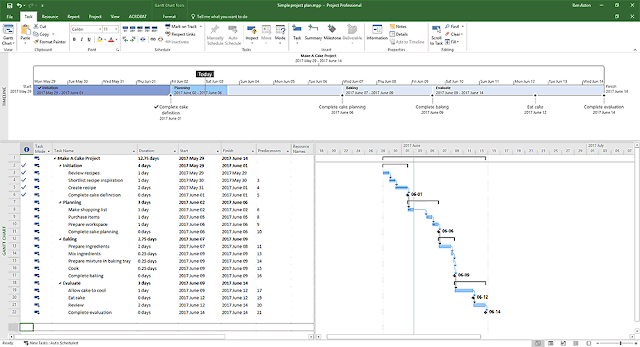
 Simple Project Plan in Microsoft Project
 Procurement Tracking Chart Excel Template


Follow Us
Were this world an endless plain, and by sailing eastward we could for ever reach new distances